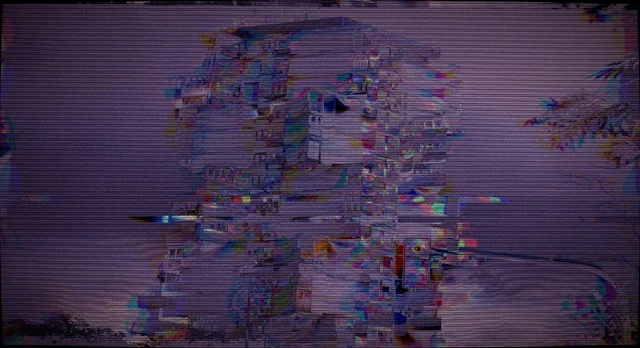

You open a video you shot last week, maybe a kid’s recital or a work presentation you can’t reshoot, and instead of playing it just sits there. A black screen. A spinning wheel that never resolves. Or an error message flatly telling you the file “cannot be played.” The file is right there, taking up its usual amount of space on your drive, but for all practical purposes it might as well be gone.
Video corruption feels random when it happens to you, but it almost never is. There’s usually a specific, identifiable reason a video file breaks, and understanding which one you’re dealing with tells you a lot about whether it’s fixable, and how. In most cases, it is, and tools built specifically for video, like Stellar Repair for Video, exist precisely because generic file recovery software wasn’t designed for how these files actually fail.
What “Corrupted” Actually Means
A video file isn’t just the footage. It’s a container format, like MP4 or MOV, wrapped around compressed video and audio streams, held together by an index that tells your player where each frame lives and how they fit together in order. When people say a video is corrupted, they usually mean one of two things happened: either that index got damaged or incomplete, or the actual video data inside got scrambled.
The difference matters because a broken index is often fixable. Your player doesn’t know how to navigate the file, but the footage itself may be intact underneath. Scrambled video data is a harder problem, since the frames themselves have been altered or lost, not just misfiled.
Cause One: The Recording Was Interrupted
This is by far the most common cause, and it’s almost always about the file’s index, not the footage itself.
When a camera or phone records video, it writes the footage continuously but only finalizes the file’s index at the very end, once recording stops normally. If the camera loses power mid-recording, the memory card gets pulled out too soon, or the app crashes while filming, that final step never happens. The footage is sitting on the card, but there’s no proper instruction manual telling a video player how to read it. The result is a file that often shows up with a strange or zero file size, or one that opens but immediately fails.
This is genuinely one of the more recoverable situations, because nothing about the actual video data is wrong. It’s an organizational problem, not a content problem, which is exactly the kind of damage software like Stellar Repair for Video is built around. It can rebuild that missing index, often using a healthy sample clip from the same device as a reference, and reconstruct a file your player can actually open again.
Cause Two: A Bad or Failing Storage Device
SD cards and drives wear out. Every write cycle degrades flash memory slightly, and after enough use, or with a cheap or counterfeit card, certain sectors start failing. When a video file happens to land on a sector that’s starting to go bad, parts of it can end up unreadable or replaced with garbage data, even though nothing about how you recorded or handled the file was wrong.
This tends to produce different symptoms than an interrupted recording. Instead of a file that won’t open at all, you often get a video that plays for a while and then glitches, freezes, or shows blocky artifacts partway through, right around where the damaged data sits. A telltale sign is if the problem is reproducible in the same spot every time you play it back.
Stellar Repair for Video handles this differently from an indexing problem, since the goal here is reconstructing playable frames around the bad sector rather than just fixing navigation. It scans the file’s actual video stream, isolates the parts that are still intact, and rebuilds a usable file around them.
Cause Three: An Incomplete Transfer or Copy
Moving a video from a camera to a computer, or a phone to cloud storage, involves copying potentially gigabytes of data, and any interruption partway through, a cable coming loose, a phone going to sleep and killing the transfer, a laptop losing power, leaves you with a partial file. Sometimes the file system on the receiving end even reports the transfer as complete when it wasn’t, which is particularly frustrating because you don’t find out anything’s wrong until you try to actually watch it.
This is one of the easier problems to prevent, since the fix is almost always “just copy it again from the original,” provided the original still exists. It only becomes a real problem when the source file has since been deleted or the card reformatted, at which point you’re relying on repairing what you already have rather than replacing it. This is another scenario Stellar Repair for Video is built to handle, since a partially copied file shares a lot of the same symptoms as an interrupted recording: a file that exists, takes up space, but won’t play cleanly from end to end.
Cause Four: Format Conversion Gone Wrong
Converting a video between formats, compressing it for sharing, or editing it in software that crashes partway through a save can all leave you with a file that’s technically saved but internally broken. This is common with videos edited on phones or with free conversion tools that handle the process poorly, especially if the app or your device runs out of storage or memory mid-conversion.
The tricky part here is that the original file may no longer exist if the conversion was a “save over” rather than a “save as,” which raises the stakes on getting the broken copy repaired rather than simply reshooting or retransferring. Stellar Repair for Video supports a wide enough range of formats and codecs that it can often work directly with whatever the failed conversion produced, rather than needing you to track down the original.
Cause Five: Multiple Video Segments That Won’t Merge
Some cameras, especially action cams and older phones, split long recordings into multiple smaller files rather than one continuous one, often due to file size limits in older formats like FAT32. If one segment in that sequence gets corrupted or goes missing, or if the segments get separated and one is deleted individually without you realizing it was part of a set, you can end up with a video that plays partially before cutting off abruptly, even though nothing seems obviously wrong with the file you do have.
This one is easy to miss as a cause because the file you’re looking at often isn’t corrupted in the traditional sense. It’s just incomplete, and the missing piece is elsewhere or gone entirely. If you have a batch of related clips from the same shoot that all need attention, this is where Stellar Repair for Video’s simultaneous batch video repair feature earns its keep, letting you process the whole set at once instead of working through them one by one.
Why Generic Tools Usually Fall Short Here
It’s tempting to treat a corrupted video like any other broken file and reach for a general-purpose repair tool, but video’s layered structure, container, codec, index, streams, trips up software that wasn’t built with that structure in mind. A generic tool might try to force a fix without understanding the specific codec involved, and in the worst cases that can damage the data further rather than restore it.
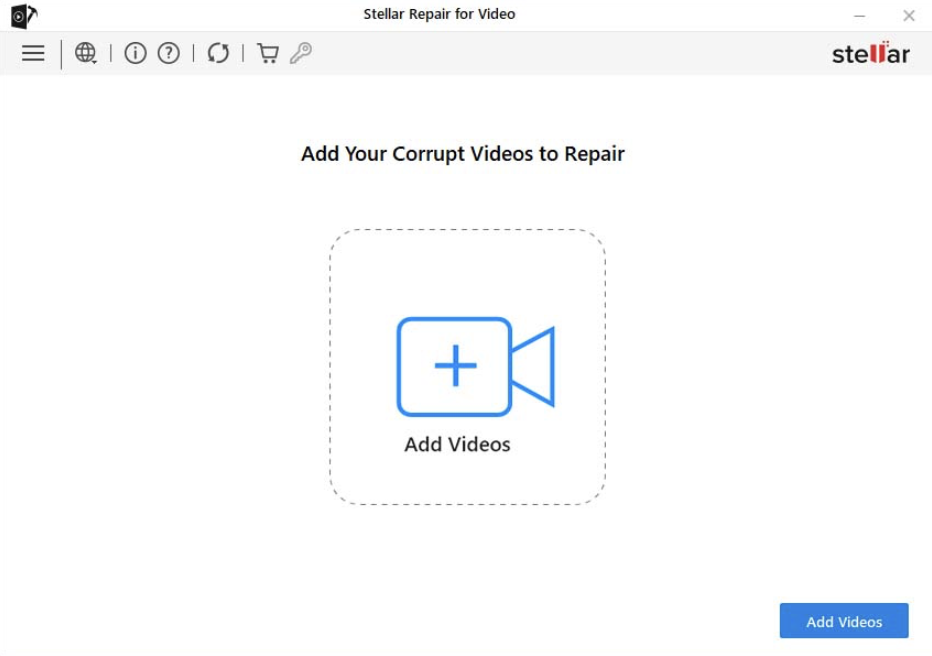
This is really the whole case for using something purpose-built. Stellar Repair for Video works across the common formats you’d actually run into, MP4, MOV, AVI, and others, from phones, DSLRs, drones, and action cameras, and it lets you preview the repaired result before saving it, so you know the fix actually worked rather than finding out after the fact. For a single damaged clip or a whole folder of them, the process is the same: point it at the file, let it scan and rebuild what it can, and check the preview before committing to anything.
It won’t perform miracles. A video where the underlying data itself is genuinely destroyed, not just mis indexed or partially damaged, has limits to what any software can reconstruct, since you can’t invent frames that no longer exist. But for the interrupted-recording, bad-sector, and failed-transfer scenarios that make up most real-world video corruption, it’s usually able to bring back something watchable where before there was nothing at all.
Reducing the Odds It Happens Again
A few habits go a long way here. Let recordings finish and finalize properly before pulling a card or closing an app, rather than stopping mid-save whenever possible. Buy storage from reputable brands and retire cards once they start showing any signs of trouble, since a card that’s already glitched once tends to do it again. Keep transfers uninterrupted, plugged in, on stable power, and don’t close the app or eject the drive until it explicitly confirms the copy finished. And when converting or editing, save to a new file rather than overwriting the original until you’ve confirmed the new version actually plays correctly.
Corrupted video feels like a dead end because the error messages are so blunt, “can’t be played,” full stop, with no explanation of why. But underneath that flat message is almost always a specific, understandable cause, and in most cases the footage itself survived even when the file around it didn’t. Knowing which scenario you’re dealing with, and having the right tool on hand for it, is most of the way to getting it back.
